Subject Comparison Window
Often when you are gathering documentation in your research you may not be convinced that the documentation you have found applies to the person your are researching. The names might be the same, but proving that identities match requires a bit more review. It's advisable to create new Subject records These are records within the Clooz database representing the Subjects being researched, and contain summary information about the Subject such as the dates for birth, marriage, and death for people. for persons when you are not sure it's the same person as represented by another Subject Subjects are the objects you are gathering information about such as people, buildings, ships, etc. In most cases within Clooz, the Subject will be a person. However, Clooz supports several other Subject types such as businesses, real estate/buildings, ships and artifacts. record. The Subject Comparison tool in Clooz allows you to compare all the information you have collected for different Subjects to determine if they are indeed the same person, or perhaps have some relationship between them (such as parent or child).
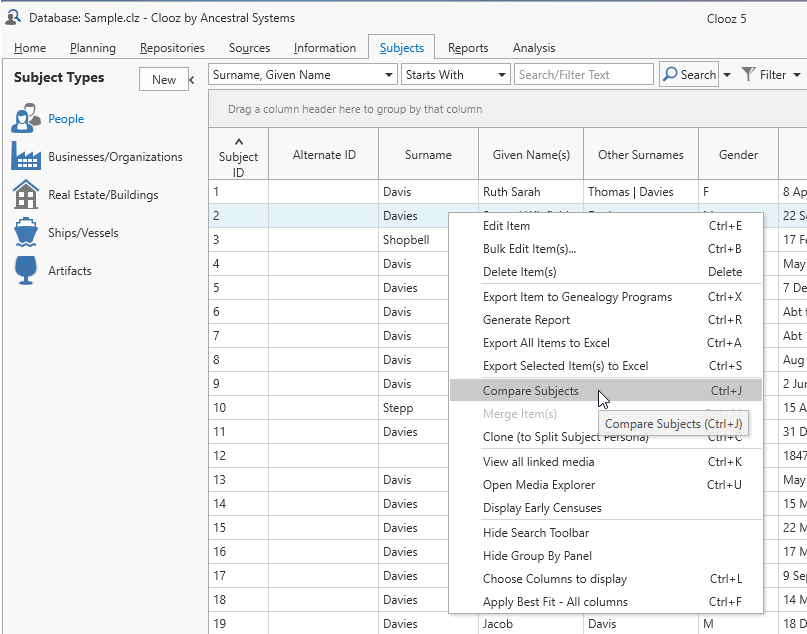 To open the Subject Comparison tool, highlight one or more Subjects from the main Subjects tab list and select Compare Subjects in the context menu (right-click menu).
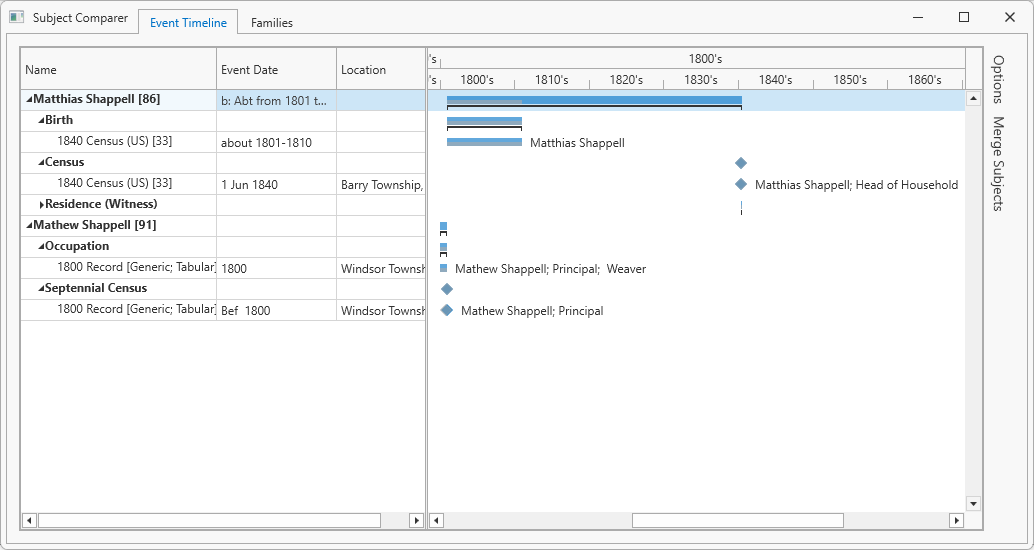
The Subject Comparison window contains two main tabs, one for an events time line and the other to review family structures.
Event Timeline Tab
The events time line page has a hierarchical tree of information in the left panel and a graphical presentation of the time frame of the various recorded events on the right. You can expand the Subjects to see their events and then further expand the events to see the Information Record Information Records in Clooz hold the content information coming from a document or another source. The Information Record differs from a Source record which contains most of the citation information that describes the document or the Repository record that is referring to the facility or an online service where the document was found. in which that event was recorded.
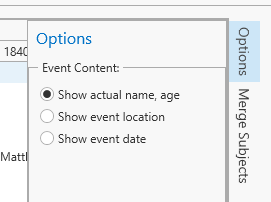 On the right side of the window is a slide-out set of Options controlling what text is displayed in the graphical presentation for each event. Hover the cursor over the Options tab to have the menu slide out.
The actual name, age option had been applied to the above image. (Age is only listed if Clooz could determine it from the data entered.) The event location option is shown below.
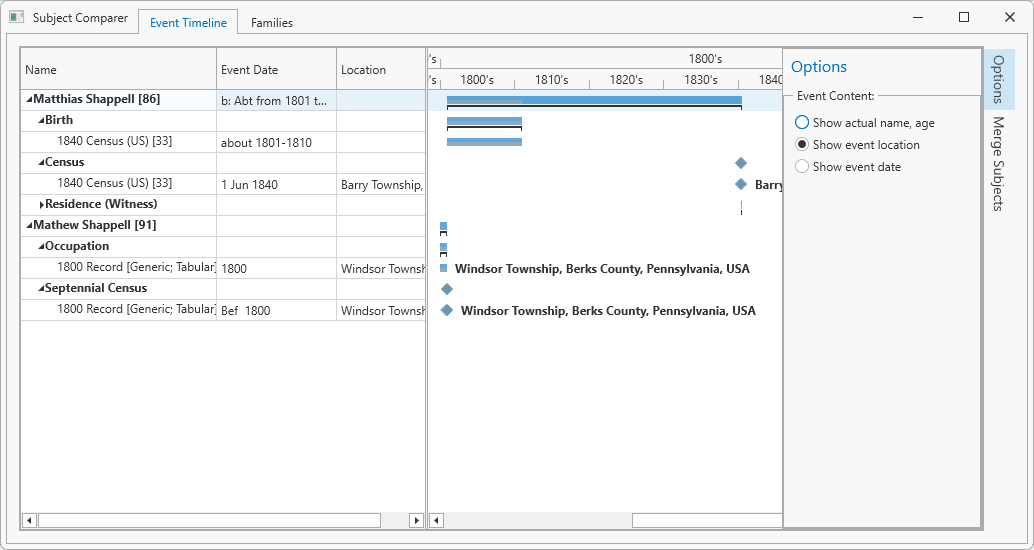
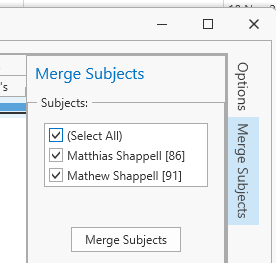 If you determine the Subjects being compared are in fact the same actual person or entity, you can merge these using the Merge Subjects function found on the right side of the display. Hover the cursor over that tab to slide out the list of Subjects. Select the Subjects you want to merge, and then click the Merge Subjects button on the slide out panel. The same merge wizard sequence that occurs when merges are done from the main screen is then begun.
Families Tab
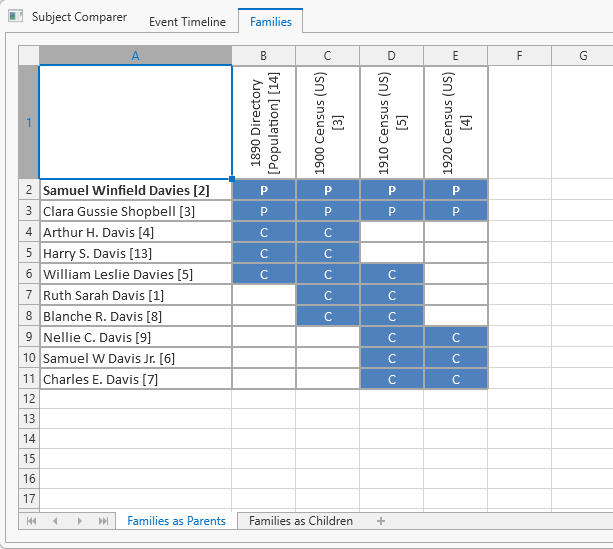 The Families tab shows the structure of the family groups defined in various Information Records that contain at least one of the Subjects being compared.
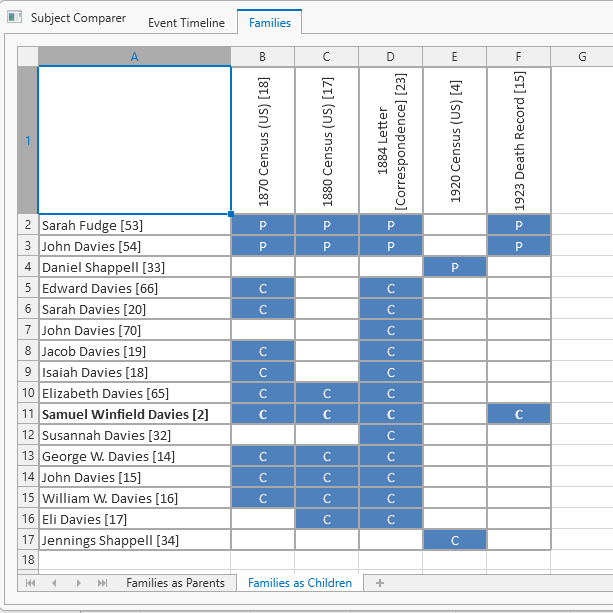 There is a tab selection at the bottom to determine display their family roles as either Parents or Children.
The Subject Comparison tool is also useful to review the time line and family groups for a single Subject. This allows you to review the consistency of the various records you have collected for the person.